










Cold email, Setup, Deliverability
Cold Email Setup Guide: Everything You Need Before You Send
Cold email lives or dies in the setup phase. Get the infrastructure right before you write a single line of copy and everything else is easier. Get it wrong and no tool will save you.

14 min read
Summarize with AI
In this article
Most cold email guides start with copy, sequences, and personalization. This one starts earlier, because the reason most cold email fails is not the message. It is the infrastructure the message is sent from.
If you are setting up cold outreach for the first time, or restarting after a burnt domain, this guide covers every step in the right order. Domain purchase, DNS records, mailbox setup, warmup, and the checklist you run before hitting send on your first campaign.
Step 1: Use a separate sending domain
Do not send cold email from your primary business domain. This is the most important rule in the guide and the most commonly ignored one.
Your primary domain (yourcompany.com) carries years of reputation with clients, partners, and investors. A single bad cold campaign can permanently damage that reputation. Providers do not forget. Even if you recover, the road back is slow and uncertain.
Instead, register a separate sending domain specifically for outreach. Common patterns are yourbrand.io, yourbrand.co, getbrand.com, trybrand.com, or yourbrand-hq.com. Pick something that looks legitimate and professional if a recipient looks it up. Avoid hyphens in odd places and random-looking strings.
- Register the sending domain at least 3 to 4 weeks before you plan to start warmup. Domain age matters to providers.
- Set up a simple redirect from the sending domain to your main website so recipients who visit it see something real.
- Make sure the WHOIS registration includes your real business details or has privacy protection, not blank or suspicious info.
- If you plan to scale to multiple mailboxes, consider registering 2 or 3 sending domain variants from the start.

Step 2: Configure DNS authentication
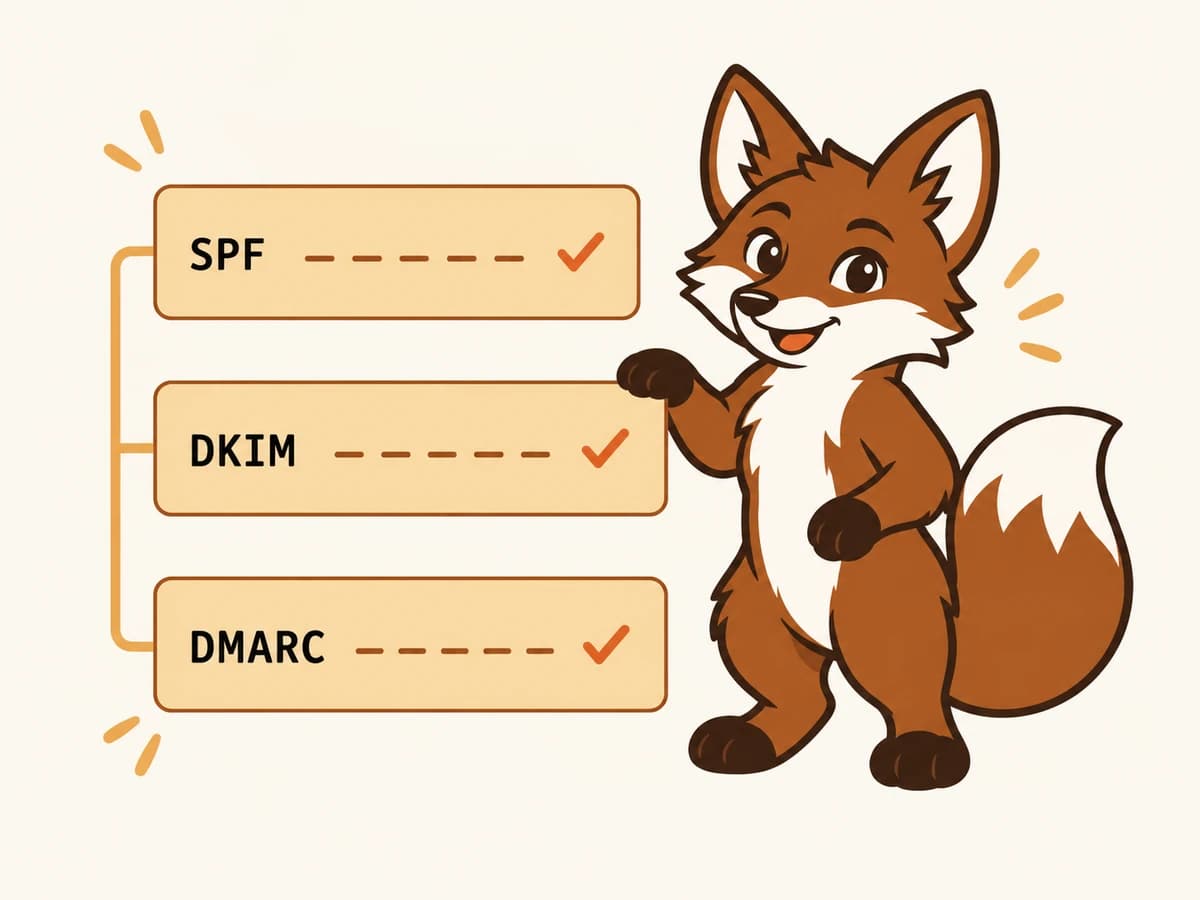
Before you configure your mailboxes, before you start warmup, and before you send a single test message, your DNS records must be correct. Authentication failures are the single biggest cause of deliverability problems, and they are almost always fixable in under an hour.
You need four records. Each one does something different.
SPF (Sender Policy Framework)
SPF is a TXT record at the apex of your domain that lists every system allowed to send email on your behalf. For a domain sending through Google Workspace, the record looks like:
v=spf1 include:_spf.google.com ~all
For Microsoft 365: v=spf1 include:spf.protection.outlook.com ~all
Rules to follow: one SPF record per domain (multiple records cause an automatic hard fail), keep DNS lookups under 10, end with ~all (soft fail) while you build confidence, then move to -all (hard fail) once campaigns are running cleanly.
DKIM (DomainKeys Identified Mail)
DKIM signs every outgoing message with a cryptographic key. Receiving servers verify the signature to confirm the message was not tampered with and came from an authorised source. Your mail provider generates the DKIM key for you; you just publish the public key as a TXT record in your DNS.
For Google Workspace, enable DKIM signing in the Admin console and add the provided TXT record (usually at google._domainkey.yourdomain.com). For Microsoft 365, enable DKIM signing in the Microsoft 365 Defender portal. Use 2048-bit keys, because 1024-bit is considered weak in 2026.
DMARC (Domain-based Message Authentication, Reporting and Conformance)
DMARC tells receiving servers what to do when SPF or DKIM fail, and where to send aggregate reports. Start at p=none (monitor-only) so you catch problems without blocking legitimate mail. A safe starting record:
v=DMARC1; p=none; rua=mailto:dmarc@yoursendingdomain.com; fo=1
Create the dmarc@ mailbox and actually read it. Aggregate reports are XML but free tools like dmarcian or EasyDMARC parse them into readable dashboards. After 30 days of clean reports, move to p=quarantine, then eventually p=reject.
MTA-STS
MTA-STS forces inbound mail to your domain over TLS and signals operational maturity to Gmail and Microsoft. Publish a policy file at https://mta-sts.yoursendingdomain.com/.well-known/mta-sts.txt and a corresponding TXT record at _mta-sts.yoursendingdomain.com. It takes about 20 minutes and most providers treat it as a trust signal.
Step 3: Set up your sending mailboxes
Once your domain is authenticated, create the mailboxes you will send from. A few decisions to make here.
Gmail or Outlook?
Both work well for cold email when properly configured. Gmail (Google Workspace) is more widely used and has better tooling for monitoring (Postmaster Tools). Outlook (Microsoft 365) reaches enterprise buyers who live in the Microsoft ecosystem. If you are targeting SMBs, Gmail. If you are targeting enterprise decision-makers, Microsoft 365. If you are unsure, start with Google Workspace.
How many mailboxes per domain?
The practical ceiling for cold email is 2 to 3 mailboxes per sending domain. Gmail and Microsoft watch domain-level sending totals, not just per-mailbox counts, and multiple mailboxes on the same domain all contribute to that total. If you plan to send significant volume, use multiple domains with 2 to 3 mailboxes each rather than stacking many mailboxes on one domain.
Mailbox naming
Use first names or first-name-last-initial patterns: james@yoursendingdomain.com, j.harris@yoursendingdomain.com. Avoid role addresses (info@, hello@, team@). They perform worse and look less personal. Set up a display name that matches a real person, even if it is a shared mailbox.
Step 4: Warm up every mailbox before sending
A new mailbox starts with zero reputation. Email providers treat it as slightly suspicious by default and apply stricter filtering until it builds a history. Skip this step and your first cold campaign will almost certainly go to spam.
Warmup is the process of generating positive engagement signals on the mailbox before any real outreach begins. A warmup tool connects your mailbox to a network of peer mailboxes. Over the coming weeks, your mailbox sends short conversational messages to peers. Peers open them, reply with quoted history, star them, mark them important, and if any land in spam, rescue them back to the inbox.
Each of those actions generates the same signals that build reputation during normal business use, but in a controlled, gradual way that does not involve real campaign recipients.