










Domain Health, Deliverability, Troubleshooting
How to Check If Your Email Domain Is Healthy
Most deliverability problems are visible before they show up in your reply rate. Here is how to audit your sending domain in under 30 minutes and know exactly what to fix.

8 min read
Summarize with AI

In this article
- What does email domain health actually mean?
- Step 1: Check your authentication records
- Step 2: Check your domain reputation at Gmail
- Step 3: Check your IP reputation at Outlook
- Step 4: Check public blocklists
- Step 5: Run an inbox placement test
- Step 6: Review your warmup health score
- Step 7: Read your DMARC aggregate reports
- What a fully healthy domain looks like
- How often should you run this audit?
- Frequently asked questions
Most email deliverability problems do not arrive as a sudden crisis. They build quietly while your reply rate slowly drops and your campaigns feel like they are getting harder to run. By the time the problem is obvious, the damage is already done.
A domain health audit takes under 30 minutes. Done regularly, it catches problems before they become expensive. Here is how to do it properly, in order.
What does email domain health actually mean?
Email domain health is a shorthand for everything that determines whether your sending domain is trusted by Gmail, Outlook, and other providers. It covers authentication records, sender reputation scores, blocklist status, inbox placement rates, and engagement signals from recent sends. None of these are visible in your campaign tool. You need separate tools to see them.
A healthy domain has all of these in good shape at the same time. One weak area is usually enough to cause spam folder placement, even if everything else is clean.

Step 1: Check your authentication records
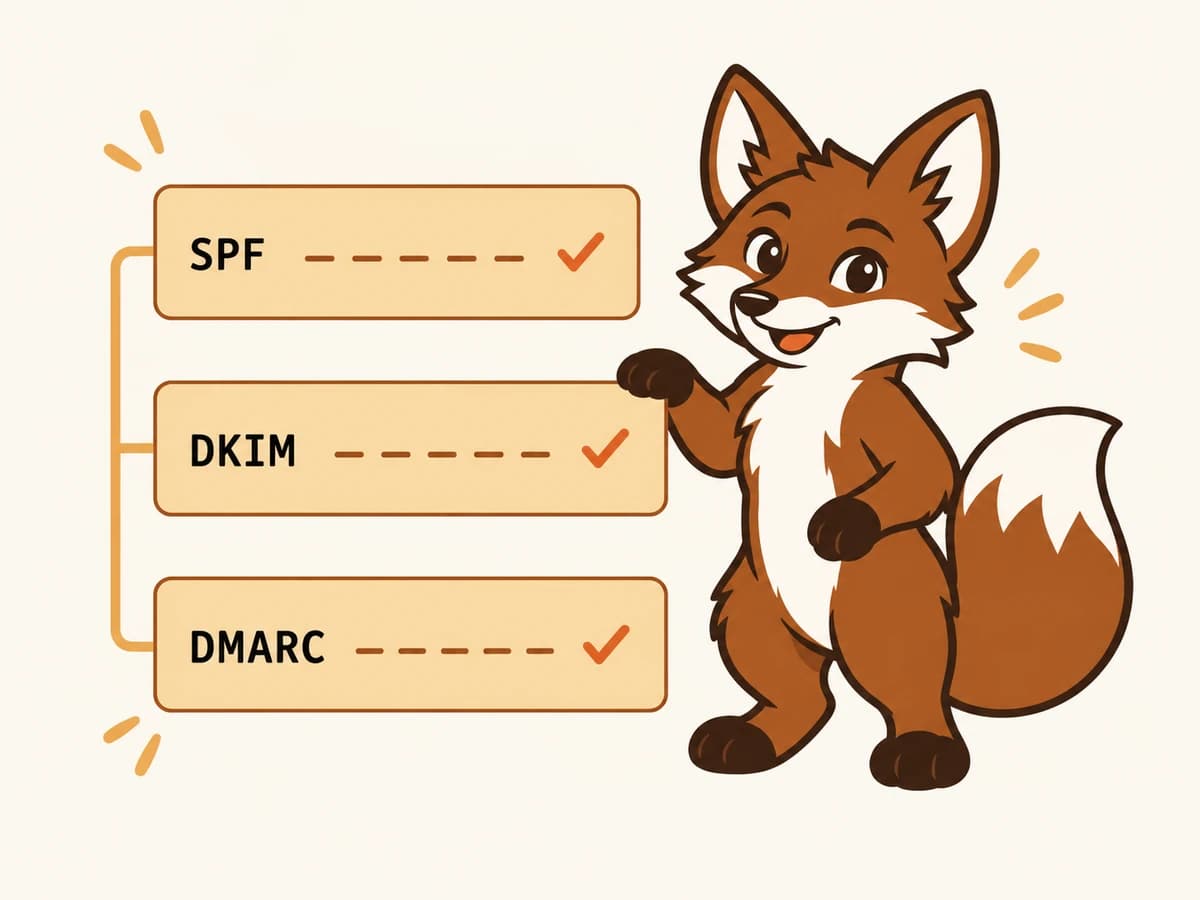
Authentication is the foundation. If any of these three records are missing or misconfigured, providers will filter your mail regardless of how good your sender reputation is.
- SPF. Run dig TXT yourdomain.com. You should see exactly one TXT record starting with v=spf1. Two SPF records on the same domain is an automatic SPF failure. Zero means fix this before anything else.
- DKIM. Find your DKIM selector in your mail provider's admin console and run dig TXT <selector>._domainkey.yourdomain.com. The record should exist and the p= value in the response should be longer than 200 characters. Shorter usually means a 1024-bit key, which is weak and is particularly penalised by Outlook.
- DMARC. Run dig TXT _dmarc.yourdomain.com. You need a record starting with v=DMARC1 with at least p=none and an rua reporting address pointing to a mailbox someone actually reads.
- MTA-STS. Not mandatory for everyone, but increasingly used as a trust signal by Gmail and Microsoft. Check https://mta-sts.yourdomain.com/.well-known/mta-sts.txt to see if a policy file exists.
If you would rather skip the command line, free tools like MXToolbox, mail-tester.com, and EasyDMARC check all of these and explain what is wrong in plain language.
As a final check: send a test message to a Gmail address you control and open the original headers. You want to see SPF: PASS, DKIM: PASS, and DMARC: PASS. All three must show PASS before you send any cold email.
Step 2: Check your domain reputation at Gmail
Google Postmaster Tools is the single most important free tool for any sender targeting Gmail inboxes. It shows you exactly what Gmail thinks of your sending domain and updates every day.
Go to postmaster.google.com, add your sending domain, and verify ownership via a DNS TXT record. Once verified, focus on four metrics:
- Domain Reputation. High is where you need to be. Medium means you are on the edge. Low means most messages are going to spam. Bad means the domain has a serious problem that needs immediate attention.
- Spam Rate. Your complaint rate as Gmail calculates it. Keep it below 0.10%. Above 0.30% and Gmail begins accelerating filtering across all your sends from that domain.
- Authentication. Should be at or near 100%. Any failures here mean your records are configured correctly in DNS but not actually passing on real sends, usually because of a misconfigured sender setting inside your mail provider.
- Delivery Errors. Look for any systematic bounces or auth failures that only appear under load.
If Postmaster shows your domain reputation as Medium, Low, or Bad, that is your primary problem. Fixing authentication or blocklist issues will not help until reputation has been rebuilt.
Step 3: Check your IP reputation at Outlook
Outlook weights IP reputation more heavily than Gmail does. If your recipients include Microsoft 365 users, Outlook.com addresses, Hotmail, or Live accounts, checking this separately from Gmail is not optional.
Go to postmaster.live.com (Microsoft Smart Network Data Services) and register your sending IPs. The data takes 24 to 48 hours to populate, but once it does it shows you the filter result per IP (Green, Yellow, or Red) along with estimated complaint rates and trap hit data. A Yellow or Red result is a direct cause of Outlook junk folder placement.
Also consider joining the Junk Email Reporting Program (JMRP). This sends you a complaint notification each time a recipient marks your mail as junk inside Outlook or Hotmail. It is the Microsoft equivalent of Gmail's feedback loop and gives you early warning before complaint rates reach damaging levels.
Step 4: Check public blocklists
Public blocklists are maintained by organisations like Spamhaus, SpamRats, and Spamcop. Gmail tends to ignore smaller lists; Outlook does not. A listing on certain lists is enough to route everything you send to Outlook's junk folder regardless of your reputation or authentication.
Run your sending domain and each of your sending IPs through MXToolbox's Blacklist Check or MultiRBL.com. If any listings come back, check the list's website for the self-service delisting process. Most lists offer delisting within 24 to 72 hours after you fix the underlying cause. If you are on a shared sending IP that belongs to your email provider, open a support ticket with them. Delisting a shared IP is their responsibility, not yours.
Step 5: Run an inbox placement test
Open rates and reply rates do not tell you where your mail is landing. A message that went to spam still counts as delivered in almost every campaign tool. The only reliable way to measure actual inbox placement is to send to seed mailboxes you control and check which folder each message arrived in.
Set up test mailboxes across Gmail, Outlook.com, and at least one Microsoft 365 tenant. Send a copy of a recent cold email to each one and check folder placement before your next campaign. Run this test again after any authentication change, volume increase, or list expansion.
Warmerly runs continuous inbox placement seeds across five providers as part of its standard health score. If you are using it, Gmail, Outlook.com, Microsoft 365, Yahoo, and a secondary provider are covered without setting up separate test accounts manually.
Step 6: Review your warmup health score
If you are using a warmup tool, your health score is a composite view of how your mailbox is performing across the peer network. A healthy mailbox should show a score consistently above 80, with inbox placement above 95% and spam recovery rate trending downward, meaning fewer messages are landing in spam in the first place.
A health score below 70 is a warning. Below 60 means the mailbox should not be used for cold email until it recovers. Most warmup tools show which specific signals are weak. Use that information to diagnose whether the problem is authentication, content, or volume-related before you go looking in the wrong place.
Step 7: Read your DMARC aggregate reports
If you have been running DMARC with an rua reporting address for more than a week, aggregate reports are arriving in your inbox. Most people never read them. They are among the most useful deliverability data you have.
A DMARC aggregate report shows you, per sending IP, the volume of messages, SPF result, DKIM result, and alignment result. Two things to look for: significant volume from an IP you do not recognise with both checks failing (possible domain spoofing), and volume from a legitimate source where one of the checks is failing even though the record passes (a misconfigured sending integration).
Tools like EasyDMARC or dmarcian convert the raw XML into a readable dashboard. Set one up and check it every two weeks. The ten minutes it takes has caught spoofed domains, broken vendor configurations, and misaligned bounce domains for senders who had no idea those issues existed.
What a fully healthy domain looks like
A genuinely healthy sending domain has all of the following at the same time:
- SPF, DKIM, and DMARC all passing with alignment on a test send.
- Gmail Postmaster domain reputation showing High.
- Microsoft SNDS filter result showing Green for all sending IPs.
- No active blocklist listings on major public lists.
- Inbox placement above 90% on Gmail and above 85% on Outlook in seed tests.
- Warmup health score above 80, sustained for three or more consecutive days.
- DMARC aggregate reports clean, with no unexpected sending sources.
- Spam complaint rate below 0.10% on recent campaigns.
- Bounce rate below 2% on recent sends.
If three or more of these are not in good shape simultaneously, deliverability is likely already affected even if your reply rate has not visibly dropped yet.
How often should you run this audit?
Before every new campaign launch: check inbox placement and Postmaster reputation. That is the minimum.
Every Monday: review Postmaster domain reputation, SNDS filter results, and warmup health score. Every two weeks: read your DMARC aggregate reports. Once a month or after any unexplained drop: run a full blocklist check.
At any meaningful send volume, daily monitoring takes ten minutes and the cost of catching a problem on day two versus day fourteen is the difference between a quick fix and a month-long reputation recovery.
Frequently asked questions
How do I know if my email domain is blacklisted?
Run your sending domain and each sending IP through MXToolbox's Blacklist Check or MultiRBL.com. These tools check dozens of public blocklists simultaneously and report any listings immediately. If you find one, visit the specific list's website for their self-service delisting instructions.
What is a good email domain health score?
In Warmerly, aim for a health score consistently above 80. Below 70 is a warning sign and below 60 means the mailbox is not ready for cold email. Outside of warmup tools, the equivalent benchmark is Gmail Postmaster showing High domain reputation combined with inbox placement above 90% in seed mailbox tests.
Can I check my email domain health for free?
Yes. Google Postmaster Tools (postmaster.google.com) and Microsoft SNDS (postmaster.live.com) are both free and cover the most important reputation signals. MXToolbox, mail-tester.com, and EasyDMARC also offer free authentication and blocklist checks. The only thing these free tools do not provide is automated daily monitoring with alerts.
My authentication is passing but emails still go to spam. What else should I check?
Authentication passing is necessary but not sufficient. Check your Gmail Postmaster domain reputation. A Low or Bad score sends everything to spam regardless of auth. Check public blocklists. Run a seed inbox test to confirm actual placement. Review your recent spam complaint rate (should be below 0.10% at Gmail). Also check whether your warmup health score has declined, which indicates your positive engagement signals are weakening.
How long does it take to recover a damaged sending domain?
It depends on how long the damage has been accumulating. If the problem is under four weeks old, consistent clean behaviour (reduced volume, warmup running, authentication fixed, list cleaned) can often restore reputation in two to four weeks. If the domain has been in poor health for months, most senders find it faster to register a fresh domain and build reputation from scratch than to rehabilitate the old one.
Does checking domain health actually improve inbox placement?
The check itself does not improve placement, but it tells you which specific issue is responsible. Most senders guess wrong about the cause of their spam folder problems, which means they fix the wrong thing. Checking authentication, reputation, blocklists, and placement together usually narrows the problem to one or two root causes within 30 minutes.